
A high-performance hybrid Swift/Rust macOS application for automated FTP file downloading with intelligent stabilization monitoring, concurrent processing, and real-time performance optimization.
Demo Video
Click to view in fullscreen
Screenshots
Features
🎯 Intelligent File Processing
- Smart File Stabilization: Monitors file sizes until stable before downloading to prevent incomplete transfers
- Concurrent Processing: High-performance Rust engine handles parallel downloads with configurable connection pools
- Real-time Performance Tracking: Live monitoring of download speeds, connection times, and throughput metrics
- Auto-tuning Aggressiveness: Automatically adjusts connection strategies based on server performance
⚙️ Advanced Configuration
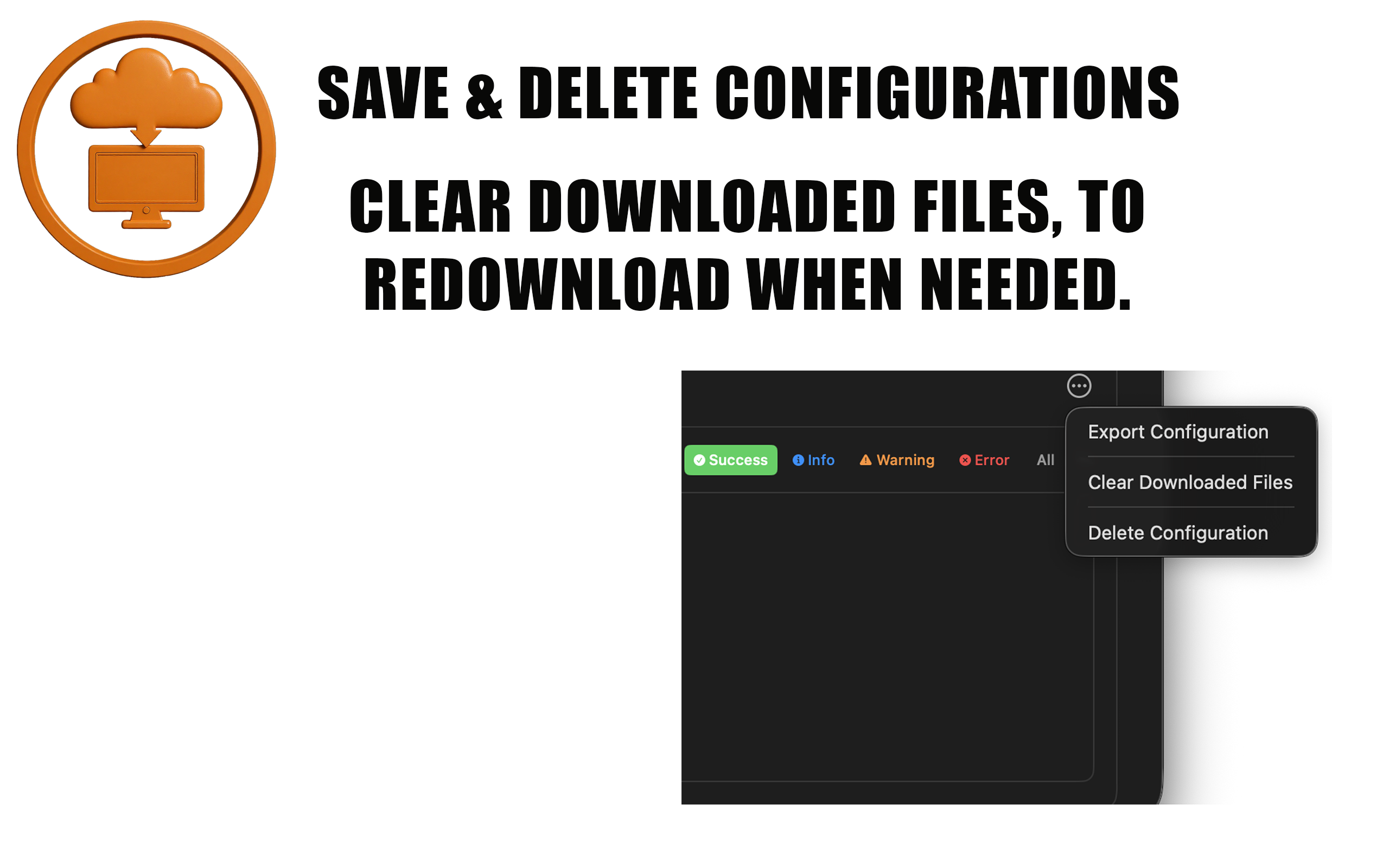
- Multiple Server Profiles: Save and manage unlimited FTP server configurations
- Connection Testing: Built-in connectivity verification before saving configurations
- Flexible Download Modes: Choose between "Delete After Download" or "Keep After Download"
- Directory Structure Preservation: Maintain original FTP directory hierarchy locally
- Secure Credential Storage: macOS Keychain integration for encrypted password storage
📊 Performance & Monitoring
- 7 Aggressiveness Levels: From Conservative (3 connections) to Extreme Max (200 connections)
- Real-time Statistics: Live files/second tracking, connection times, and session reports
- Comprehensive Logging: Real-time activity feed with detailed operation logs
- Progress Visualization: Visual progress bars and status indicators for all operations
🔄 Smart Synchronization
- Configurable Sync Intervals: From 0.1 seconds to 2 hours
- Multi-directory Monitoring: Watch multiple FTP directories simultaneously
- Automatic Retry Logic: Exponential backoff for failed operations
- Session Persistence: Resume operations after app restart
System Requirements
- macOS: 14.0 or later
- Architecture: Apple Silicon only
- Storage: Minimal app footprint, space depends on download needs
Privacy Policy
Data Collection: We do not collect any personal data.
Credential Storage: All FTP credentials are stored securely in macOS Keychain on your device.
Network Activity: The app only connects to FTP servers you explicitly configure.
File Access: Only user-selected download directories are accessed. All files remain on your device.
Download & Install
Step 1: Download
Download FTP Retriever from the Mac App Store
Open App StoreStep 2: Install
Click "Get" or the price button to download and install the app. The installation will complete automatically.
Step 3: Launch
Find FTP Retriever in your Applications folder or Launchpad and launch the app.
Step 4: Grant Permissions
When prompted, grant the app permission to access your selected download folders and network connections.
System Compatibility
FTP Retriever is optimized for Apple Silicon Macs.
The hybrid Swift/Rust architecture ensures optimal performance on Apple Silicon hardware.
Initial Setup
⚙️ 1. Create FTP Configuration
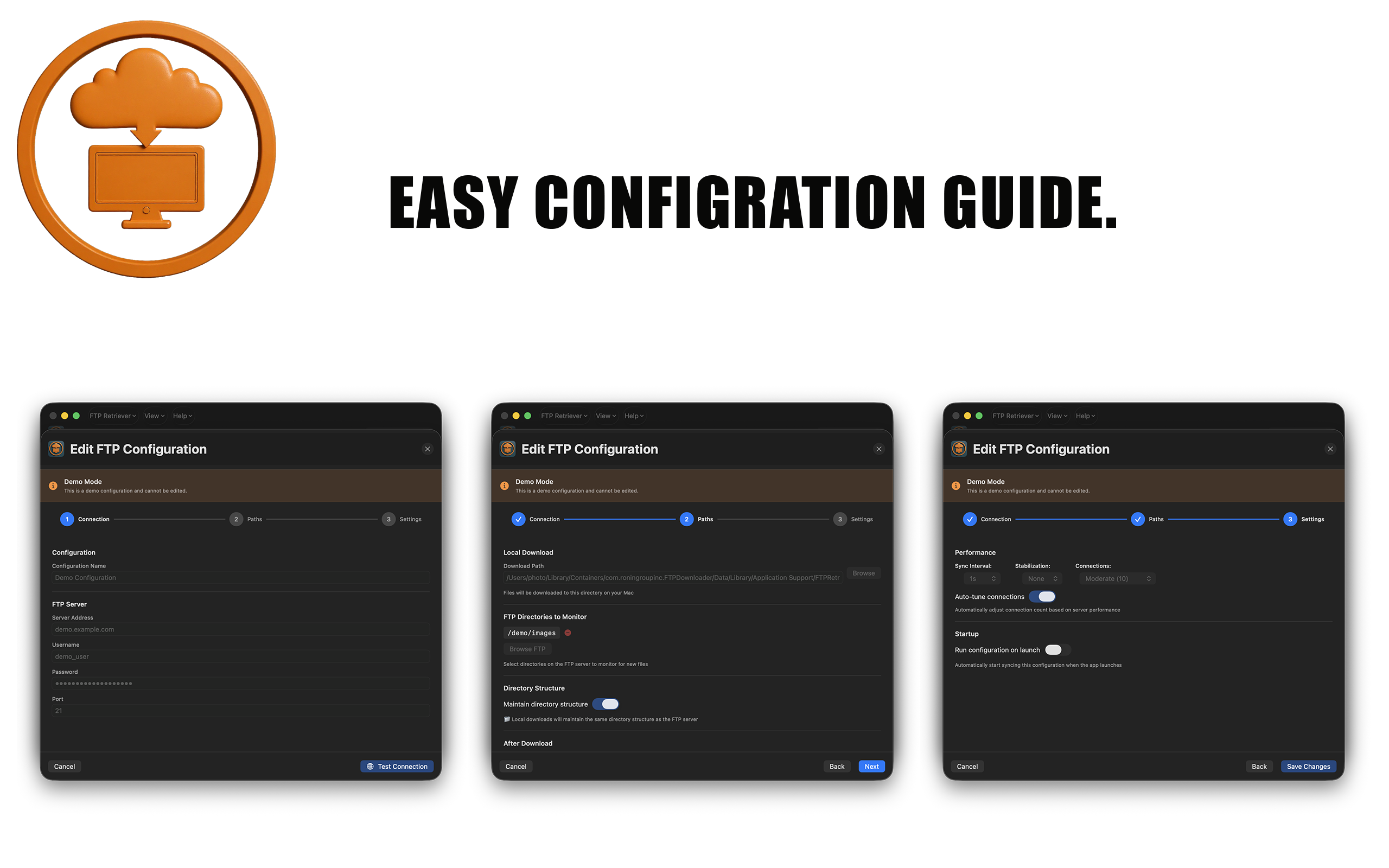
- Click "New Configuration" in the main window
- Enter a name for your configuration
- Enter FTP server address (e.g., ftp.example.com)
- Enter username and password
- Set port number (default: 21)
- Click "Test Connection" to verify
2. Configure Download Settings
- Local Download Path: Choose where files will be saved on your Mac
- Sync Directories: Add FTP directories to monitor (e.g., /uploads, /incoming)
- Sync Interval: How often to check for new files (0.1s - 2hr)
- Stabilization Interval: How long to wait for file size stability (0-60s)
- Download Mode: Delete files after download or keep them on server
3. Choose Performance Level
Aggressiveness Levels:
- Conservative (3 connections): Gentle on servers, most reliable
- Moderate (10 connections): Balanced performance - recommended default
- Aggressive (20 connections): High speed for robust servers
- Extreme (50 connections): Very high speed for enterprise servers
- Maximum (100 connections): Maximum speed for high-capacity servers
- Ultra (150 connections): Ultra-high speed for enterprise infrastructure
- Extreme Max (200 connections): Maximum theoretical performance
4. Start Synchronization
Click "Start" to begin monitoring and downloading files. The app will continuously monitor your configured FTP directories and automatically download new files as they appear.
Monitoring Operations
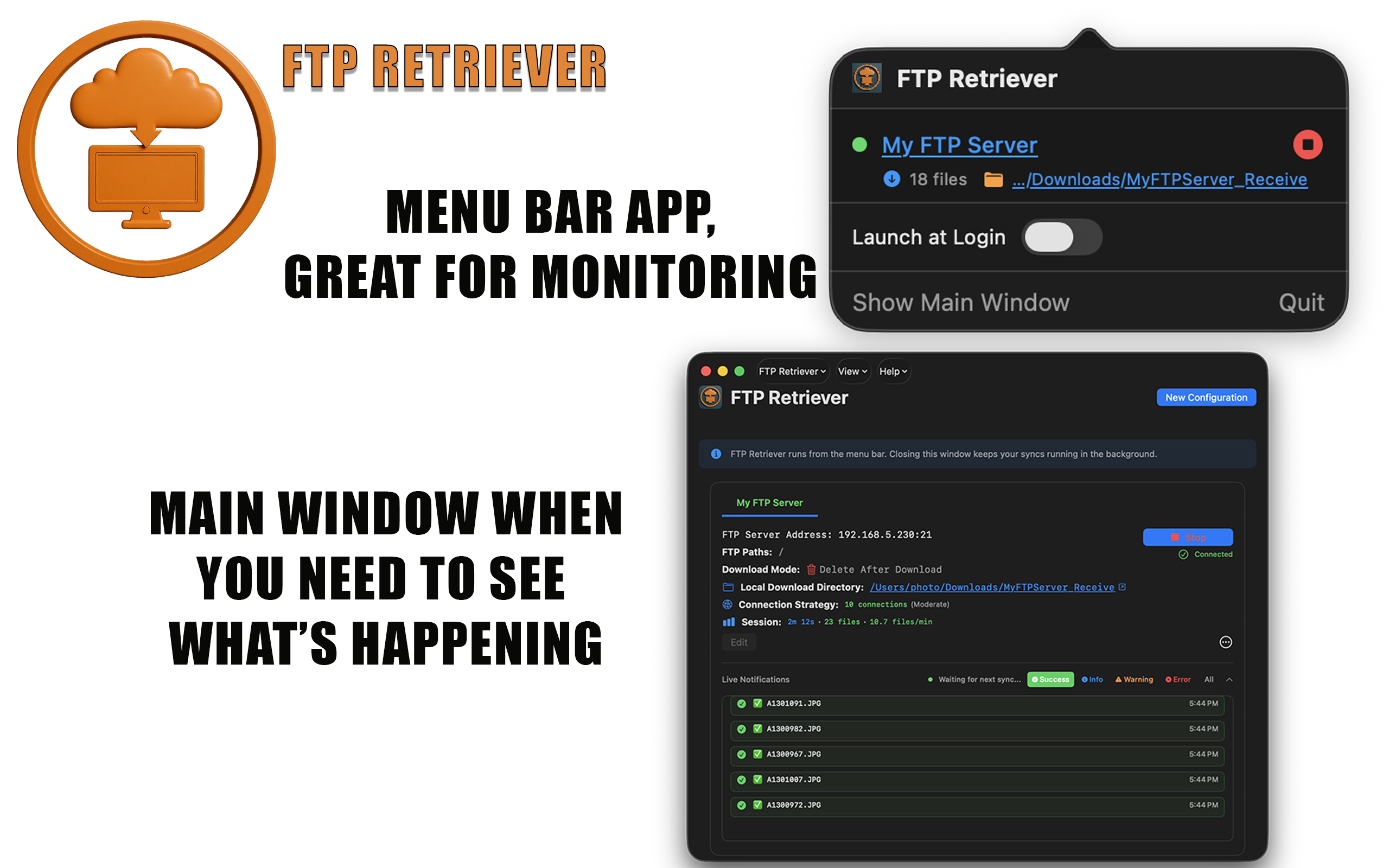
- Configuration Tabs: Switch between multiple server configurations
- Real-time Status: Monitor connection status, download speeds, file counts
- Live Logs Window: View detailed operation logs in real-time
- Session Statistics: Track performance metrics and download history
- Start/Stop Controls: Independent control of each configuration
File Processing States
- Pending: File discovered, queued for processing
- Monitoring: File size being checked for stability
- Downloading: File actively being downloaded
- Completed: File successfully downloaded
- Failed: Download failed, automatic retry scheduled
- Deleted: File removed from server (if Delete mode enabled)
⚠️ Common Issues
Connection Failed
- Verify server address, port, and credentials are correct
- Check firewall settings and network connectivity
- Test with an FTP client like FileZilla first
- Ensure FTP server is accessible from your network
Authentication Error
- Confirm username and password are correct
- Check if server requires specific authentication methods
- Verify account has proper permissions on FTP server
- Try recreating the configuration with fresh credentials
Permission Denied
- Ensure local download directory is writable
- Check FTP server permissions for specified directories
- Verify your FTP account has read access to monitored directories
- Check macOS permissions for the app to write to download folder
Poor Performance / Slow Downloads
- Try a lower aggressiveness level (start with Moderate or Conservative)
- Increase stabilization interval if files are being downloaded prematurely
- Check network bandwidth and server capacity
- Ensure local storage (SSD vs HDD) isn't the bottleneck
- Monitor server load - high connection counts may overwhelm some servers
Files Not Being Detected
- Verify sync directories are correct on the FTP server
- Check that files are arriving in monitored directories
- Ensure sync interval isn't too long for your use case
- Check Live Logs window for detailed operation information
Incomplete File Downloads
- Increase stabilization interval to ensure files are fully uploaded before downloading
- Check network stability - intermittent connections cause incomplete downloads
- Lower aggressiveness level to reduce server load
- Enable automatic retry for failed downloads
Performance Optimization
- Server Capacity: Match aggressiveness level to server capabilities
- Network Conditions: Adjust for bandwidth and latency
- File Patterns: Optimize sync intervals based on file arrival frequency
- Local Storage: Use SSD storage for optimal download speeds
- Auto-tuning: Enable auto-tune aggressiveness for automatic optimization
Advanced Features
Sync Intervals
- 0.1s - 1s: Near real-time monitoring for time-critical applications
- 5s - 30s: Standard monitoring for regular file transfers
- 1hr - 2hr: Light monitoring for low-frequency file drops
Live Logging
Access the dedicated Live Logs window to view detailed real-time operation information, including connection status, file discovery, download progress, and error messages.
Get Support
If you're experiencing issues not covered above, please contact support:
Email: support@roningroupinc.com
Include details about your configuration, error messages from Live Logs, and steps to reproduce the issue.